
| App Name | Kinemaster Without Watermark |
| Latest Version | v7.7.3.34536.GP |
| MOD Features | Without Watermark |
| Size | 116 MB |
| Genre | Video Players & Editors |
| Publisher | KineMaster Inc. |
| Update | Today |
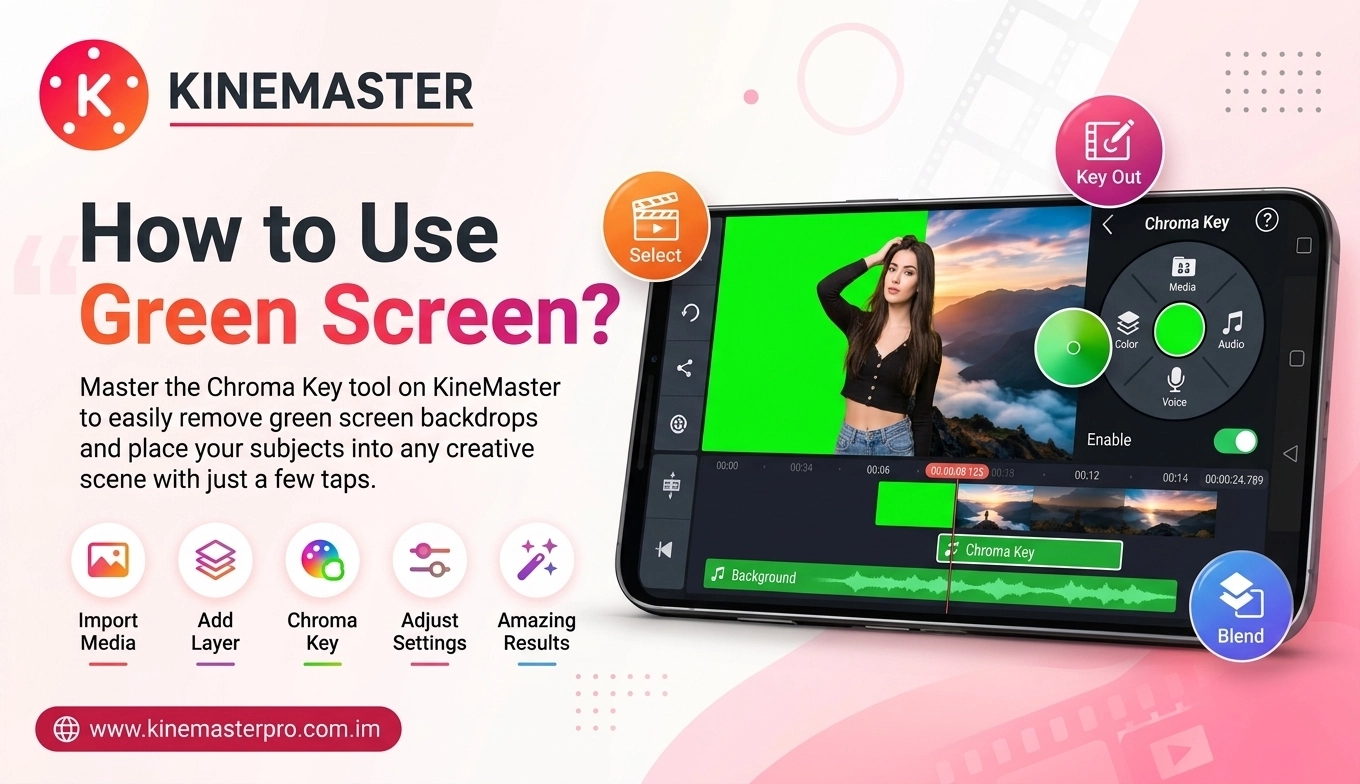
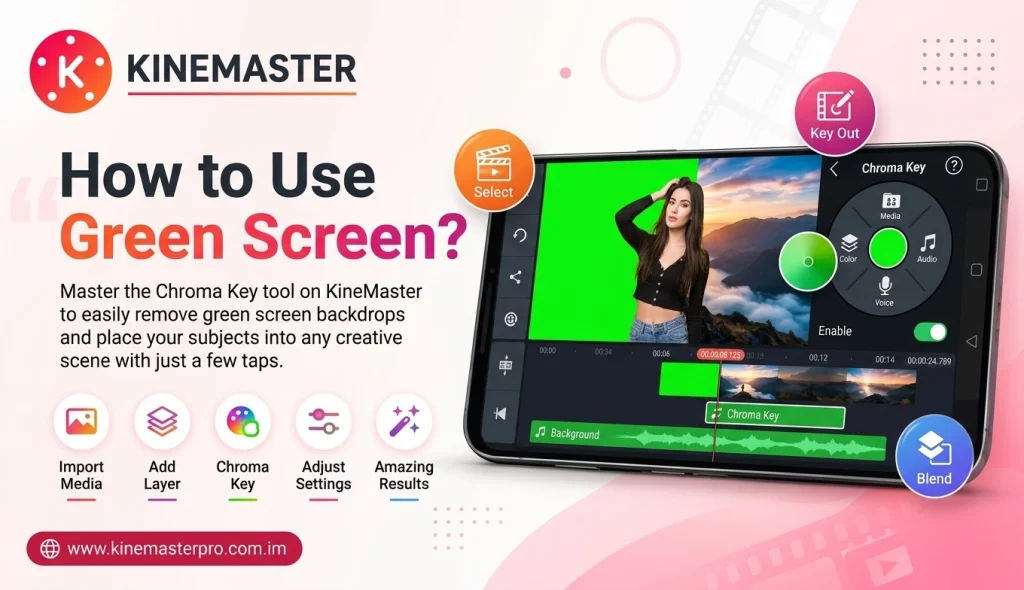
How to Use Green Screen in KineMaster
Green screen editing is a creative technique that allows video creators to replace a background with another image or video. It is commonly used in YouTube videos, tutorials, gaming content, presentations, and social media clips. With KineMaster, Android users can explore green-screen editing through its Chroma Key feature on supported devices and application versions.
If you are new to this editing technique, this guide explains how to use green screen in KineMaster, prepare your footage, remove the background, and improve the final result.
What Is Green Screen Editing?
Green screen editing is a video production technique that uses a specific background color, usually green, which can be removed during editing. After removing the selected color, you can place another video, picture, or visual background behind the main subject.
KineMaster uses a feature called Chroma Key to make this process possible. It helps creators produce different scenes without recording in every location.
What You Need Before Starting
Before using the green-screen feature, prepare the following:
- An Android device compatible with your KineMaster version.
- The KineMaster application.
- A video recorded against a green background.
- A background image or video.
- Sufficient storage space for your project.
- Good lighting for clearer green-screen footage.
For better results, make sure the green background is evenly lit and does not have strong shadows.
How to Use Green Screen in KineMaster
Follow these steps to create your first green-screen video.
Open KineMaster
Launch KineMaster on your Android device. Tap the option to create a new project and select an aspect ratio according to your intended platform.
For example:
- 16:9 for standard YouTube videos.
- 9:16 for TikTok, Reels, and Shorts.
- 1:1 for square social media videos.
Add Your Background
Select your background image or video from the media browser. Add it to the main timeline.
You can use a landscape image, animated background, office scene, gaming environment, or any other suitable visual.
Add Your Green Screen Video
Select the Layer option and choose Media. Import the video recorded against the green background.
The green-screen footage should appear as a separate layer above your background.
Open the Chroma Key Tool
Select the green-screen video layer on the timeline. Find the Chroma Key option in the available layer settings.
Enable the feature if it is supported by your installed version.
Remove the Green Background
Adjust the available Chroma Key settings to remove the green color. Make small changes while watching the preview.
Avoid increasing the settings too much, as this may remove parts of your subject or create unwanted transparent areas.
Adjust the Subject
Resize and reposition your subject to fit the new background. You can move the subject, adjust its size, and arrange the layers to create a natural-looking scene.
Preview Your Video
Play the complete project and check the edges of your subject. Look for remaining green areas, unwanted shadows, or parts of the subject that have disappeared.
Make additional adjustments if necessary.
Export Your Video
When the editing is complete, open the export options. Select a suitable resolution and frame rate based on your device and project requirements. Save the finished video to your phone.
Tips for Better Green Screen Results
Good source footage can make a major difference in Chroma Key editing.
- Use Even Lighting: Light the green background evenly to reduce shadows.
- Avoid Green Clothing: Wearing green may cause parts of your subject to disappear.
- Keep Distance: Stand away from the background to reduce green light reflecting onto your subject.
- Use a Clear Background: Wrinkles and uneven colors can make background removal more difficult.
- Check Subject Edges: Review hair, clothing, and other detailed areas carefully.
- Match the Lighting: Make sure the subject and replacement background look like they belong in the same scene.
Common Green Screen Problems in KineMaster
| Problem | Possible Solution |
| Green color remains | Adjust Chroma Key settings |
| Subject disappears | Reduce the keying strength |
| Uneven background removal | Improve background lighting |
| Green edges around subject | Increase distance from the green screen |
| Video looks unnatural | Match background lighting and colors |
| Chroma Key unavailable | Check app version and device compatibility |
Creative Ways to Use Green Screen
You can use KineMaster green-screen editing for several types of content:
- YouTube tutorials and educational videos.
- Gaming commentary and reaction videos.
- Travel-style backgrounds.
- Product presentations.
- Social media reels and short videos.
- Creative storytelling and presentations.
Frequently Asked Questions
Does KineMaster support green-screen editing?
Yes. KineMaster includes Chroma Key functionality on supported devices and application versions.
Can I use a video as a green-screen background?
Yes. You can place a compatible video behind your green-screen footage as a background layer.
Why is my green background not disappearing?
Uneven lighting, shadows, and similar colors in the subject may affect background removal. Adjust the Chroma Key settings and improve the original footage if possible.
Can beginners use Chroma Key in KineMaster?
Yes. Beginners can learn the process by adding a background, importing green-screen footage, and adjusting the Chroma Key settings.
Conclusion
Green-screen editing in KineMaster is a useful way to create creative video scenes using an Android device. By combining background images, video layers, and Chroma Key settings, you can produce tutorials, presentations, gaming videos, and social media content. Start with well-lit footage, adjust the settings carefully, and preview your project before exporting to achieve better results.
1 thought on “How to Use Green Screen in KineMaster”